How to publish a book on Amazon KDP: a step-by-step guide
Amazon Kindle Direct Publishing (KDP) lets any author publish a book for free as a Kindle ebook, paperback or hardcover and make it available in Amazon stores worldwide. Publishing is straightforward; getting found is much harder. This guide walks you through each step in order, focusing on the settings that really matter for your book’s visibility.
1. Set up your KDP account
Visit kdp.amazon.com and sign in with an Amazon account, ideally one dedicated to your author business. Before you can publish, KDP asks you to complete:
- Your tax information: an online questionnaire that determines any withholding tax applied to your royalties.
- Your bank details, so you can receive payments.
- Your name or business name, as it will appear on your payments.
Tip
Fill in these details from the start: an incomplete profile will block publication just when you’re ready to click “Publish”.
2. Prepare your manuscript and cover
For ebooks, KDP accepts formats including EPUB and DOCX. For a paperback or hardcover, upload a PDF sized to your chosen trim size (6 x 9 inches is very common), with the correct margins. A print cover includes the back cover, spine and front cover: its width depends on the page count and paper type.
Your cover is your first advertisement. In Amazon search results, it appears as a tiny thumbnail: make sure it stays readable at that size and follows the visual conventions of bestsellers in your genre.
3. Complete your book listing
This is the most important step for getting found. Your listing includes:
- Title and subtitle: use the subtitle to clarify your book’s genre or benefit, without keyword stuffing.
- Description: up to 4,000 characters to persuade readers who land on your page.
- Language, author, contributors, series and edition.
- Intended audience and an adult-content declaration where applicable.
Your 7 KDP keywords
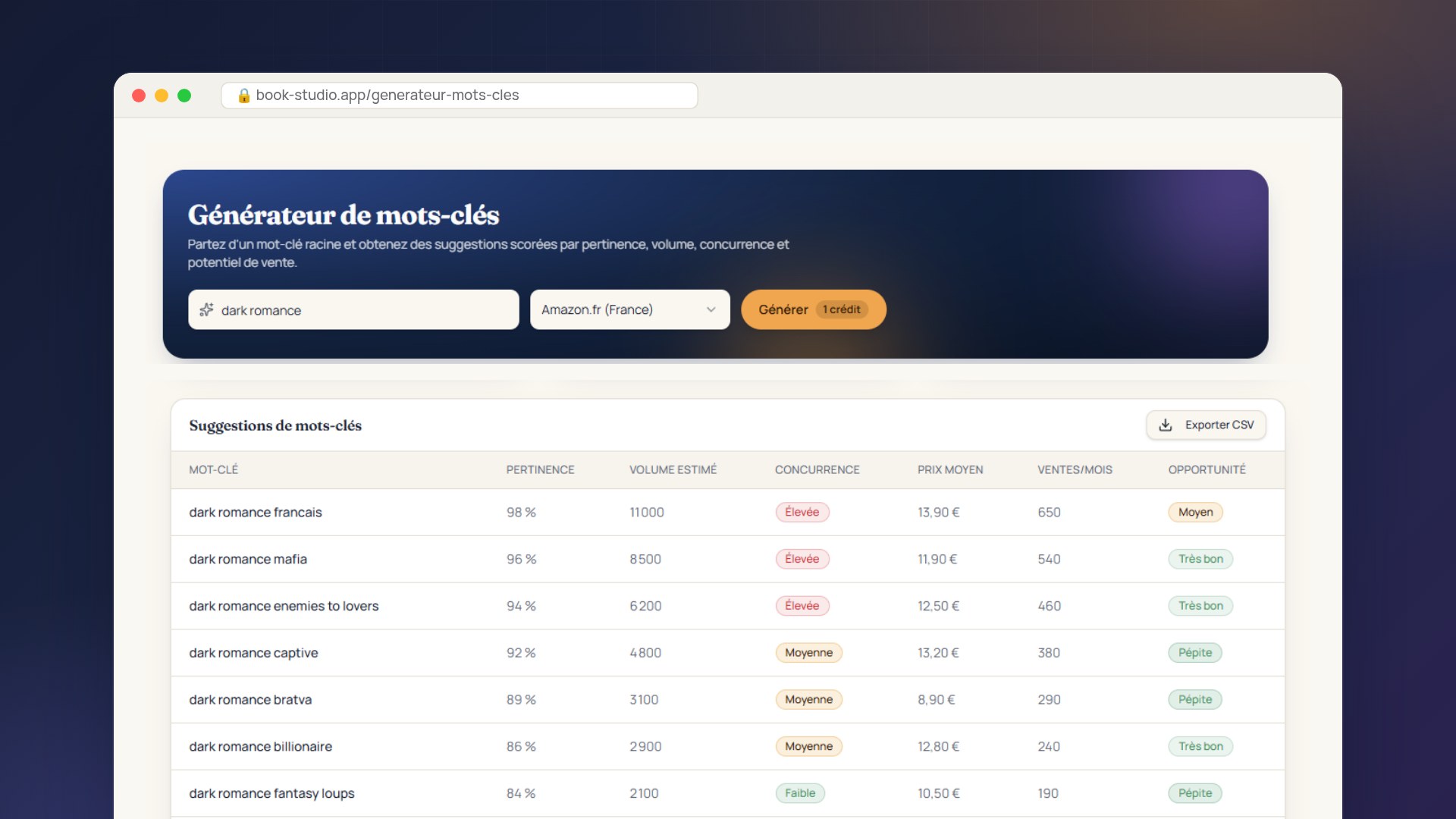
KDP gives you 7 keyword fields. Use them for phrases readers actually type into Amazon’s search bar (“Scottish crime fiction”, “gratitude journal for kids”…), rather than words already in your title. Avoid other authors’ names, trademarks and terms such as “bestseller” or “free”: KDP’s rules prohibit them.
Categories
You can choose up to three categories. Pick specific categories where your book has a realistic chance of ranking, rather than a broad category where it will disappear among thousands of titles.
4. Choose your price and royalty option
For ebooks, KDP offers two royalty options: 35% or 70%. The 70% option is only available if your price falls within Amazon’s specified range (between $2.99 and $9.99 on Amazon.com (other Amazon stores have equivalent ranges)), and digital delivery fees based on file size are then deducted.
For print books, your royalty is a percentage of the sale price minus printing costs, which depend on page count, format and ink. KDP’s pricing screen shows the exact royalty for each store: check it before setting your price.
Should you enroll in KDP Select?
Enrolling your ebook in KDP Select makes its digital edition exclusive to Amazon for 90-day periods. In return, it joins Kindle Unlimited, where you’re paid per page read, and you gain access to promotional tools such as temporary free offers. It’s often a good fit for genre fiction, whose readers are particularly active on Kindle Unlimited.
5. Publish, then check
After submission, KDP says it can take up to 72 hours for your book to go live. Once it’s available, check that:
- it appears when you search for its main keyword phrases;
- it’s listed in the right categories;
- the ebook and print editions are linked on the same page.
Publication is where the real work begins
A published book with no visibility won’t sell itself. In the first few weeks, monitor your Best Sellers Rank (BSR), adjust your keywords if your book doesn’t appear in any searches, and consider a small Amazon Ads campaign to kick-start sales.
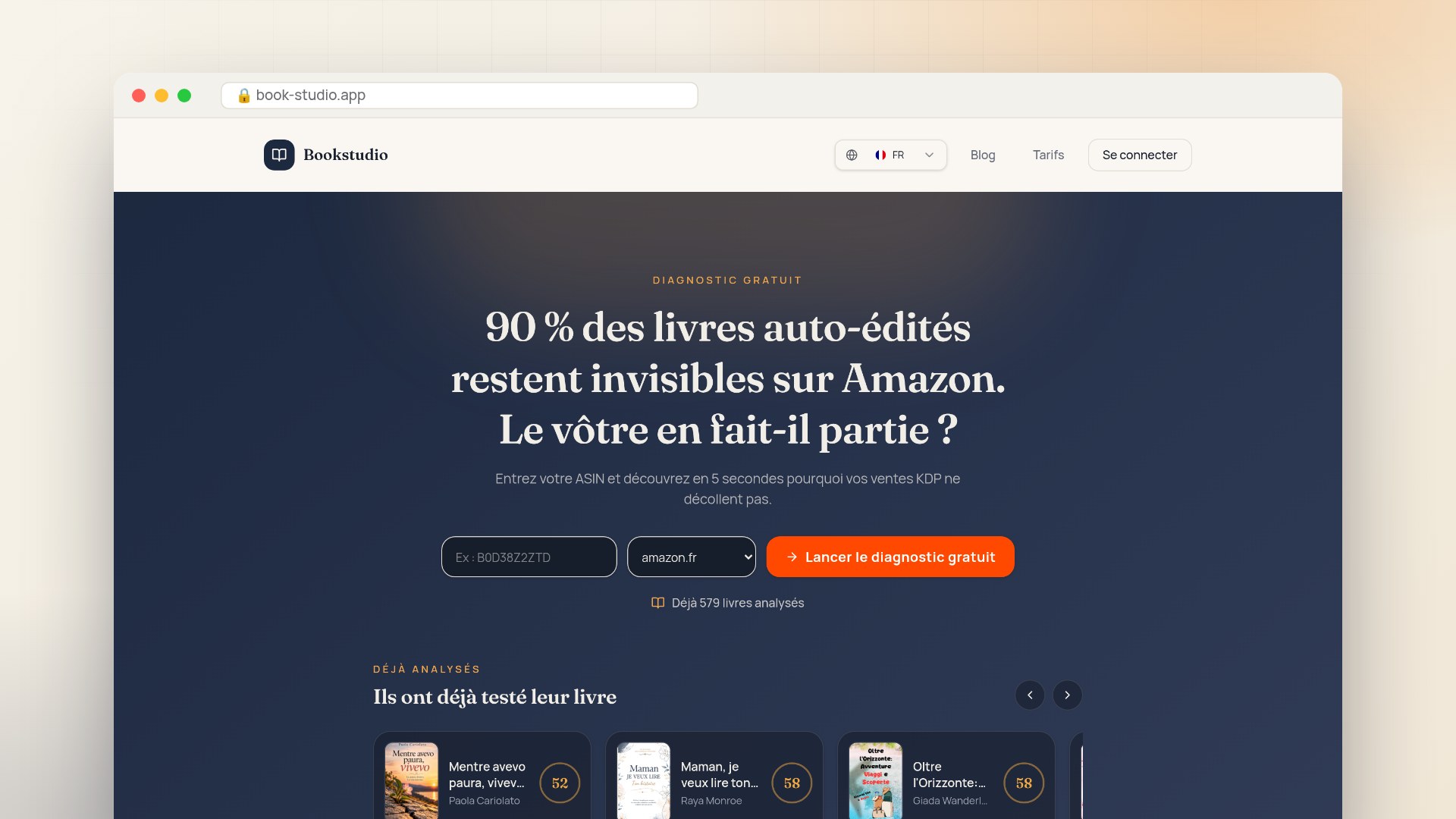
Bookstudio’s free diagnostic analyzes your listing using its ASIN (title, description, categories, keywords and price) and shows you what’s holding back its visibility. It takes just a few minutes.